Operator manual
You run your community from two bots. @MemblyBot is the master bot: it is where you create things, set prices and read your numbers. Your own child bot is what your members talk to, and it is the one that lets people into your private group. This page covers everything on the master-bot side, in the order you will meet it.
Getting started
Open Telegram, search for @MemblyBot, and send /start. Nothing is charged for opening an account.
The first time
Your first /start registers you as an operator and shows the welcome screen.
👋 Welcome, Sam!
Membly lets you turn a Telegram group into a paid membership.
You create a private bot, connect it to your group, and set subscription plans.
Members pay in USDC/USDT and get access automatically. Funds go straight to your wallet.
📖 How It Works is a four-line summary of the whole product:
📖 How Membly works
1. Grab a bot token from @BotFather.
2. Add your new bot as an admin in your Telegram group.
3. Set your plans, prices and payout wallet.
4. Share your bot link. Members pay and get invited automatically.
Renewals and expirations are handled for you, so you can focus on your community.
Every time after that
Later /start calls show the home menu instead.
👋 Welcome back, Sam!
What would you like to manage?
🤖 My Bots ➕ Create New Bot 💸 Pricing & Fees ❓ Help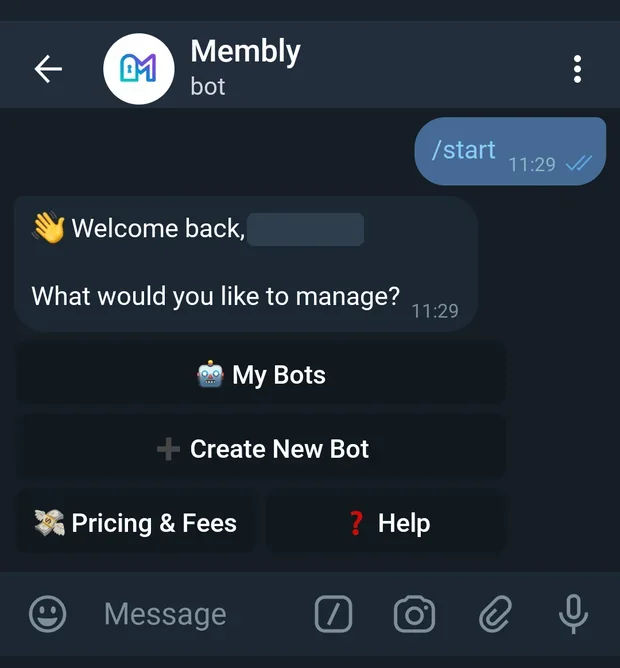
A fifth button, 🛠 Admin Panel, appears only if your Telegram account is also a Membly platform admin. Normal operators never see it.
Permission problems are announced here. If any of your bots has lost its admin rights in a linked group, the home screen adds a warning and a button above the menu: ⚠ Fix group permissions. The warning reads "⚠ Permissions problem: your bot is missing admin rights in 1 linked group(s). Paid members get no invite link and expired members are not removed."
Your bot list
🤖 My Bots and /bots both open the same list. Before you have created anything it looks like this:
You have no bots yet.
Create your first bot to start accepting subscriptions.
You'll need a bot token from @BotFather and a Telegram group.
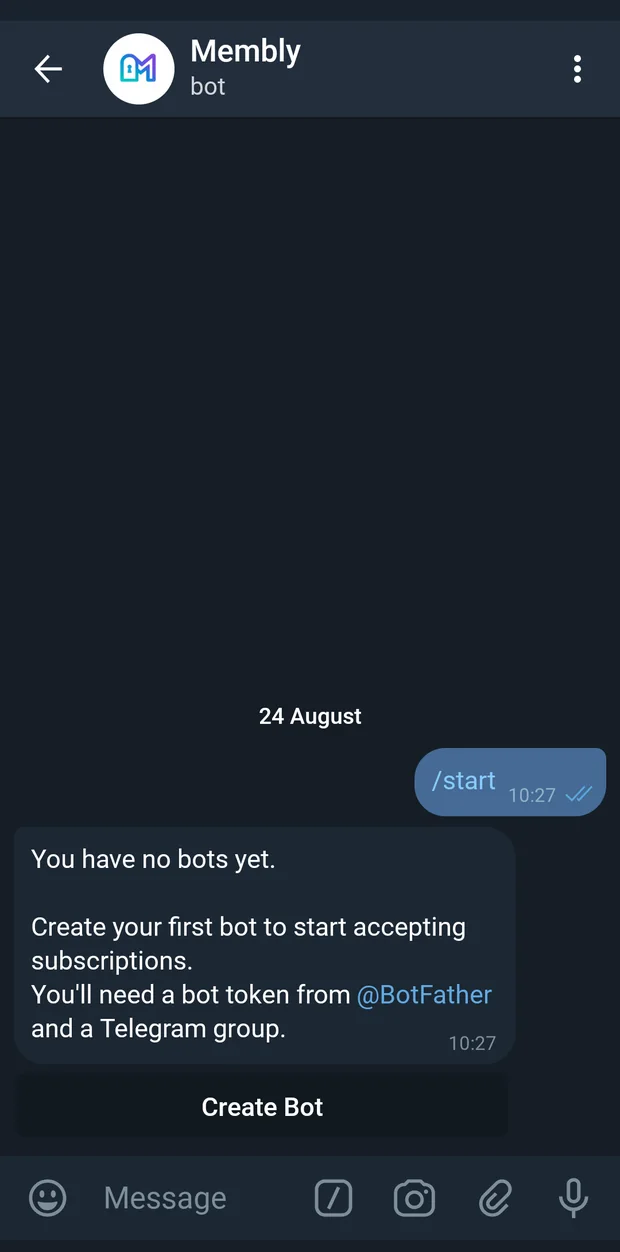
Once you have bots, each one is listed with a status dot — 🟢 for active, 🔴 for paused — and a Manage button per bot.
If your account is not active
A platform admin can suspend or ban an operator account. If that has happened, /start dead-ends with one of these and nothing else works:
Your account has been suspended. Please contact platform support for more information.
Your account has been banned. Access to the platform is no longer available.
Create your bot
Membly does not give you a bot. You create your own with Telegram's @BotFather and hand Membly the token. That way the bot is yours: your name, your picture, your username.
The wizard has exactly two required steps. Start it with /newbot in the master bot, or with 🚀 Create My Bot / ➕ Create New Bot.
-
Get a token from BotFather
Open
@BotFatherin Telegram and send/newbot. It asks for two things: a display name, which can be anything, and a username, which must be unique and must end inbot— for exampleAcmeVIPAccessBot. BotFather then replies with the token, a long string that looks like123456:ABC-DEF1234ghIkl-zyx57W2v1u123ew11.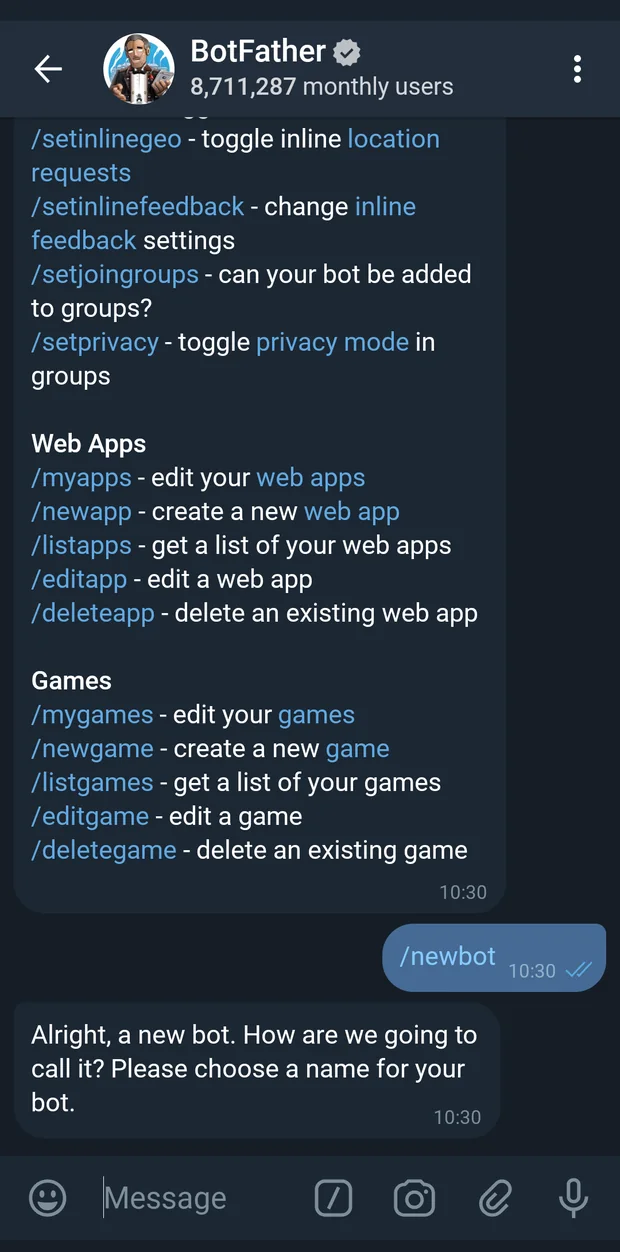
Sending /newbot to BotFather and choosing a name and username. 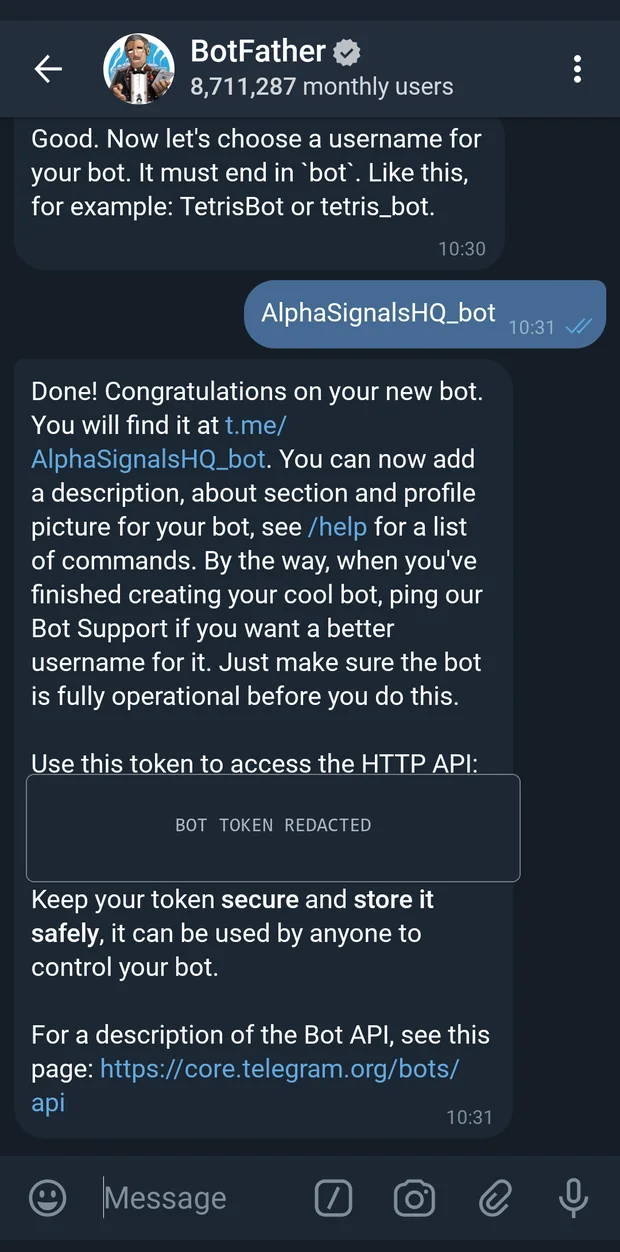
BotFather replies with the bot token for your new bot. -
Paste the token into the master bot
Back in
@MemblyBot, send/newbot. The first step asks for that token:Step 1 of 2 · Bot token
Create a bot with @BotFather. Send it /newbot and follow the prompts. Then paste the token here.
It looks like: 123456:ABC-DEF1234ghIkl-zyx57W2v1u123ew11
Only the token and a group are required — everything else has a sensible default you can change later.
Cancel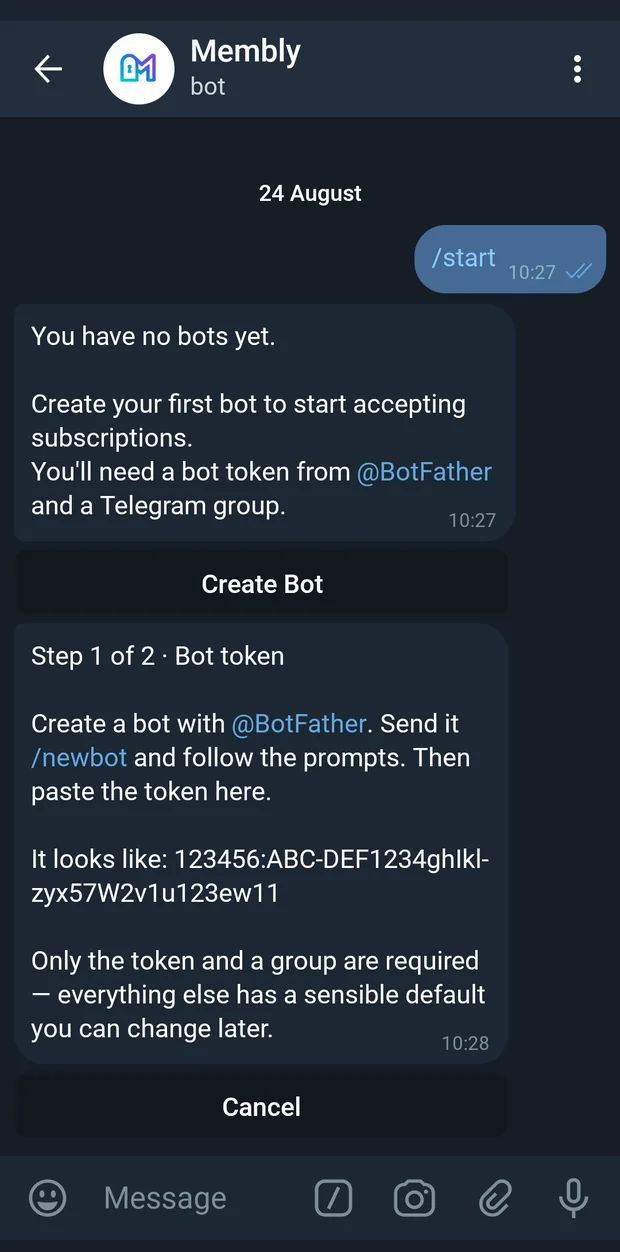
Step 1 of 2 asks for the bot token from BotFather. Membly checks the token against Telegram before accepting it, so a miscopied token is caught immediately rather than at launch.
-
Link your private group
With the token verified, the wizard names your bot and asks for a group:
Step 2 of 2 · Link a group
Token verified — bot is @AcmeVIPAccessBot.
Add @AcmeVIPAccessBot as an admin to your private Telegram group. You can link multiple groups if you want all of them gated.
The bot only needs two admin permissions:
• Invite Users via Link
• Ban UsersOnce you've added it, tap Check again — I'll detect the group automatically. You can also send the group's chat ID (-100...) instead.
🔄 Check again Cancel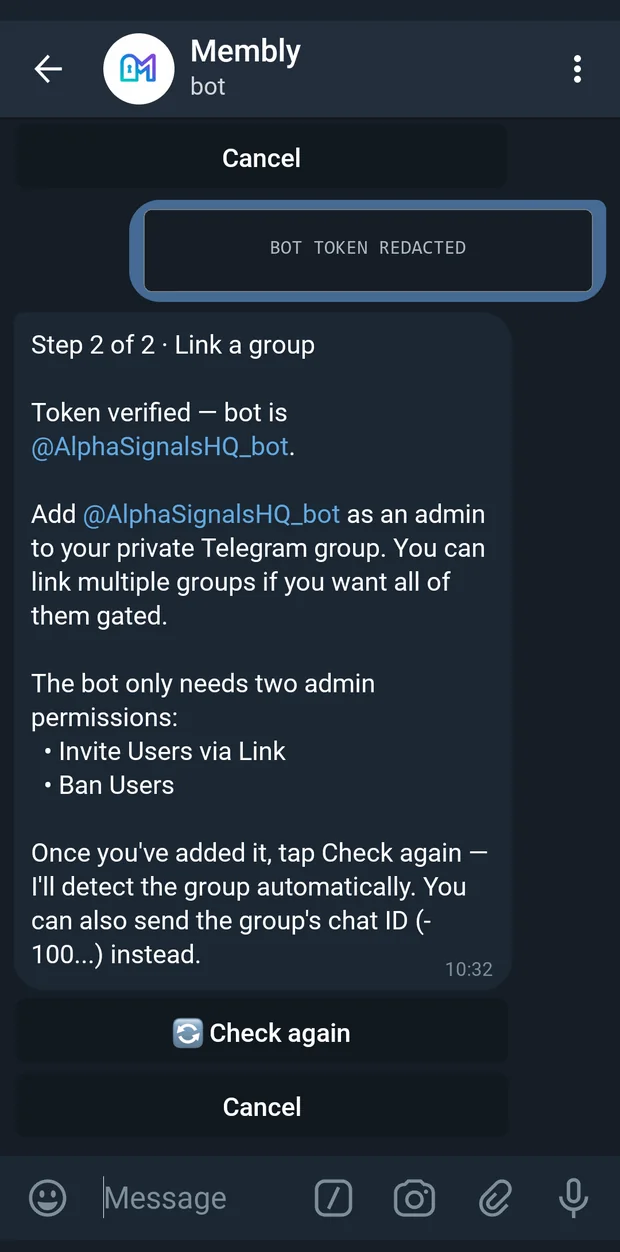
Step 2 of 2 waits for the bot to be added to your group as an admin. -
Give it the two admin rights
In your group, open the member list, add your new bot, then promote it to administrator. Turn on exactly two rights and leave the rest off:
Permission Why the bot needs it Invite Users via Link Creates the one-time join link a member gets after paying. Without it, paid subscribers get no join link. Ban Users Removes a member when their subscription expires. Without it, expired members keep access for free. 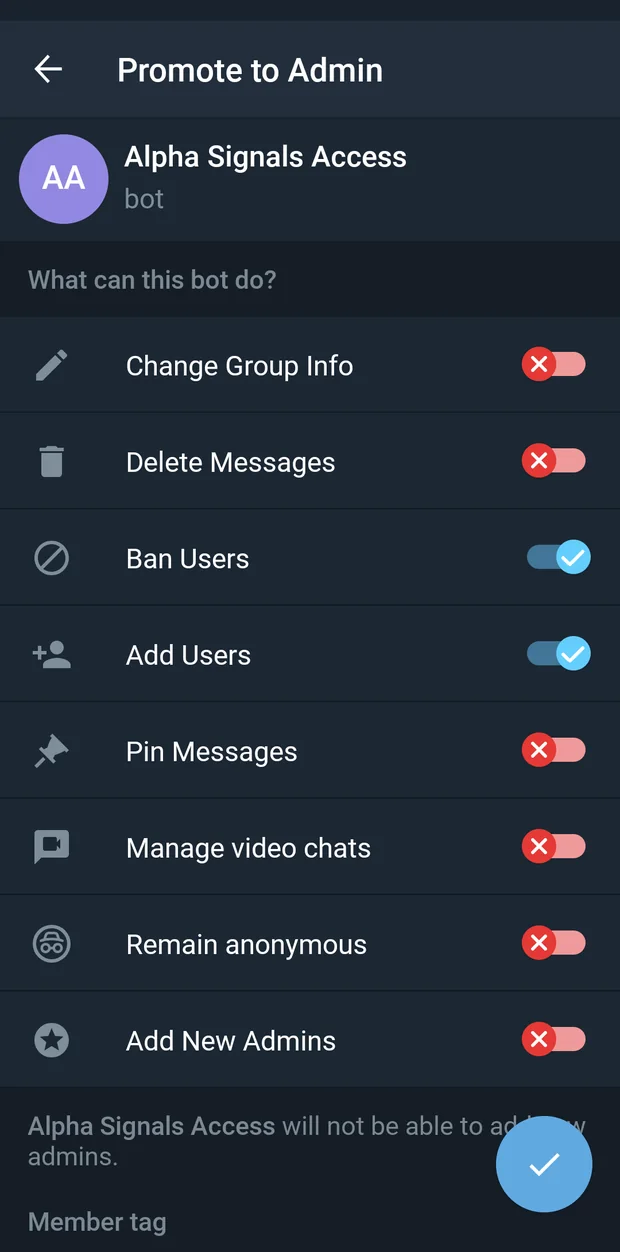
The bot promoted to administrator with Invite Users via Link and Ban Users enabled. -
Let the wizard detect it
Tap 🔄 Check again. When the bot is found with both rights, the wizard lists what it saw:
Groups detected:
✅ Acme VIP Lounge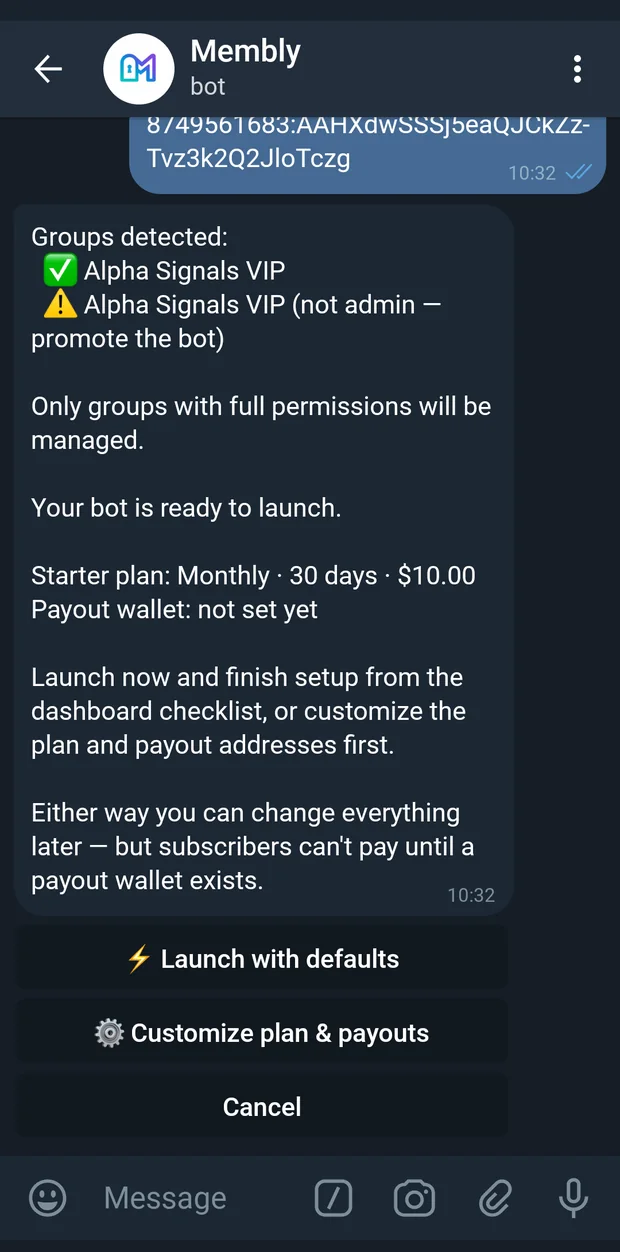
The wizard confirms the linked group and its permissions. If a group is found but the bot is not a full admin there, it is listed with the reason — "⚠️ Acme VIP Lounge (missing: Ban Users)" or "⚠️ Acme VIP Lounge (not admin — promote the bot)" — and you fix it and tap the button again. When several groups are detected and only some are set up correctly, the wizard adds: "Only groups with full permissions will be managed."
Promoting the bot turns a basic group into a supergroup. That is Telegram's own behaviour, not Membly's, and it is not reversible. Message history is kept. If your group is still a basic group, expect the conversion the moment you promote any bot to admin.
If auto-detection keeps failing, send the chat ID instead. Detection relies on Telegram replaying the "bot was added" event, which it sometimes drops. Send the group's numeric chat ID into the wizard instead of tapping the button. It is a negative number starting -100; forward any message from the group to @userinfobot to find it. The wizard rejects anything else with: "Group chat IDs should be negative and start with -100."
The wizard holds your progress for 30 minutes, which is enough time to walk over to BotFather and your group and come back. /cancel or Cancel discards it: "Setup cancelled. Your progress has been discarded."
Launch or customise
Once a properly permissioned group exists, the wizard stops asking questions and offers you a choice. That is the only hard gate in the whole flow.
Your bot is ready to launch.
Starter plan: Monthly · 30 days · $10
Payout wallet: not set yet
Launch now and finish setup from the dashboard checklist, or customize the plan and payout addresses first.
Either way you can change everything later — but subscribers can't pay until a payout wallet exists.
⚡ Launch with defaults ⚙ Customize plan & payouts Cancel⚡ Launch with defaults goes live immediately on a starter plan of Monthly, 30 days, $10, with no payout wallet yet. Your bot runs, your members can talk to it, and the dashboard checklist chases you for the wallet before anyone tries to pay. This is the fast path and you can change every part of it afterwards.
⚙ Customize plan & payouts walks the guided path instead. Every step below has a skip button that accepts the default.
-
Plan name
Plan name
What would you like to call your first plan?
e.g. Starter, Premium, VIPYou can add more tiers later from the dashboard.
Use "Monthly" CancelMaximum 100 characters.
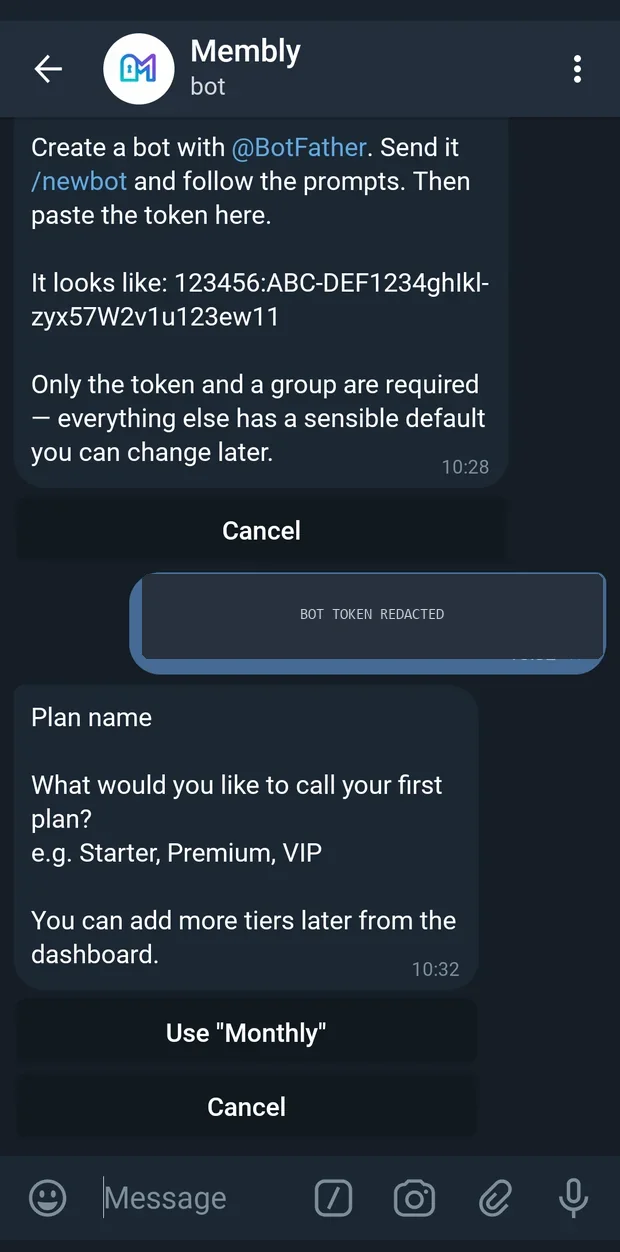
The guided path starts by naming your first plan. -
Duration
Plan duration
Plan name: VIP
How many days should this plan last?
Use 30 days Lifetime Cancel
e.g. 30 (monthly), 90 (quarterly), 365 (annual).
Send 0 or "lifetime" for a plan that never expires.Send a whole number of days, up to 65535. Sending
0, the wordlifetime, or tapping Lifetime creates a plan that never expires: one payment, permanent access.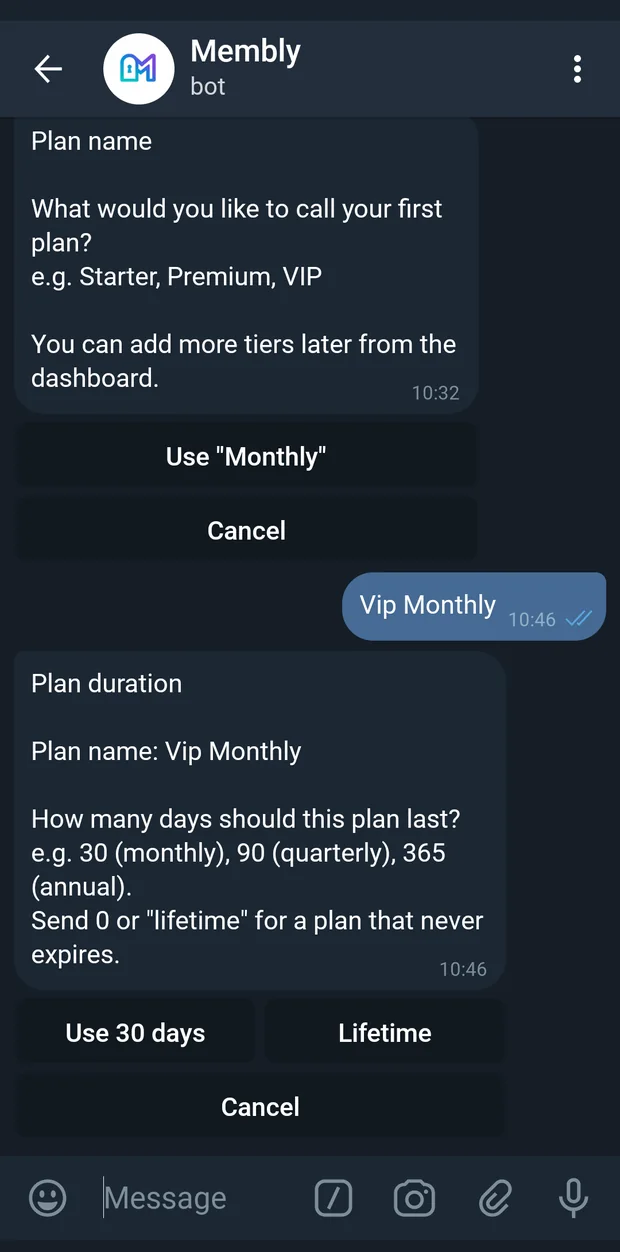
Choosing how long one subscription period lasts. -
Price
Plan price
Plan: VIP · 30 days
What's the price in USD?
Use $10 Cancel
Enter 0 for a free/trial plan, or more than $0.20 so the payment covers gas fees. Examples: 0, 5, 10.50Priced in USD, paid in USDC or USDT.
0makes the plan free — useful for a trial tier — and skips the wallet questions entirely, because a free plan never sweeps anything. Any other price must be more than $0.20: that is the platform's minimum fee, so at or below it you would receive nothing.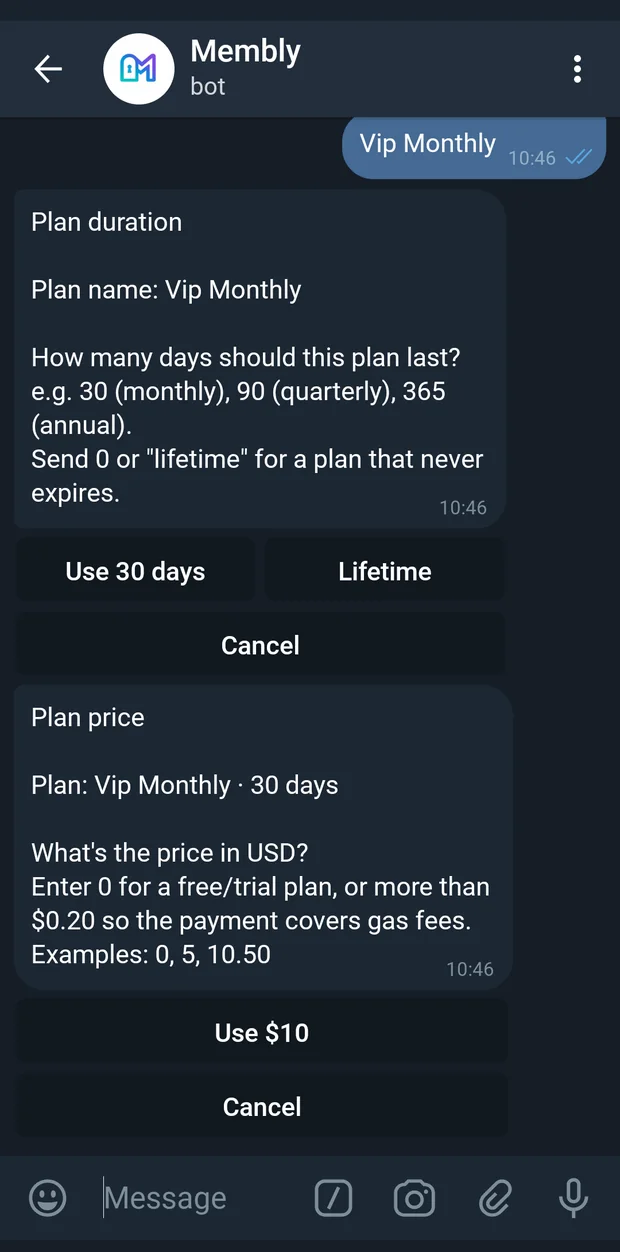
Setting the price. Zero means free; anything else must clear $0.20. -
Chains and currencies
Chains & currencies
Plan: VIP · 30 days · $10.00
Choose the payment options subscribers can use.
Tap currencies under each chain. A chain is enabled when at least one currency is selected.
After this, you'll set one EVM payout address, plus a TRON address if selected.No payout wallet yet? Skip this — the bot still launches, and the dashboard checklist will remind you before anyone tries to pay.
Selected:
✅ USDC ⬜ USDT Next: set payout addresses Skip — set payouts later Cancel
None yet.Each chain gets a header row and a row of currency toggles under it. Tap to switch a pair on or off. Only pairs that can actually settle are offered, so you will never see USDC on TRON.
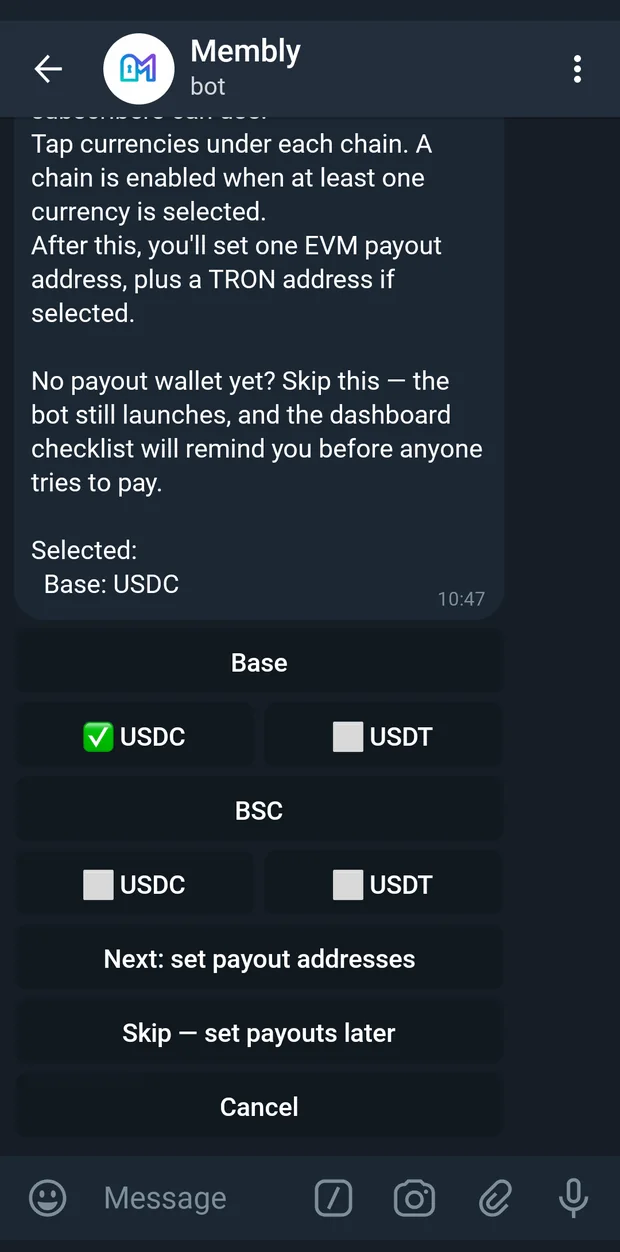
Toggling which chain and currency combinations your members can pay with. -
Payout addresses
Payout addresses
Set the payout addresses for the payment options you selected.
One EVM address is used for every selected EVM chain.Selected payment options:
Base: USDC, USDTAddresses:
Set EVM address Next: review Skip — set payouts later Cancel
EVM address: Not set
Applies to: Base · USDC, USDTTap Set EVM address and send the address:
Set EVM address
Applies to: Base
Currencies: USDC, USDTSend EVM address: an EVM address: 42 characters starting with 0x, e.g.
0xAbCd1234567890abcdef1234567890abcdef1234Must be a wallet you control. Subscription payments for these options will be swept here.
← Addresses Cancel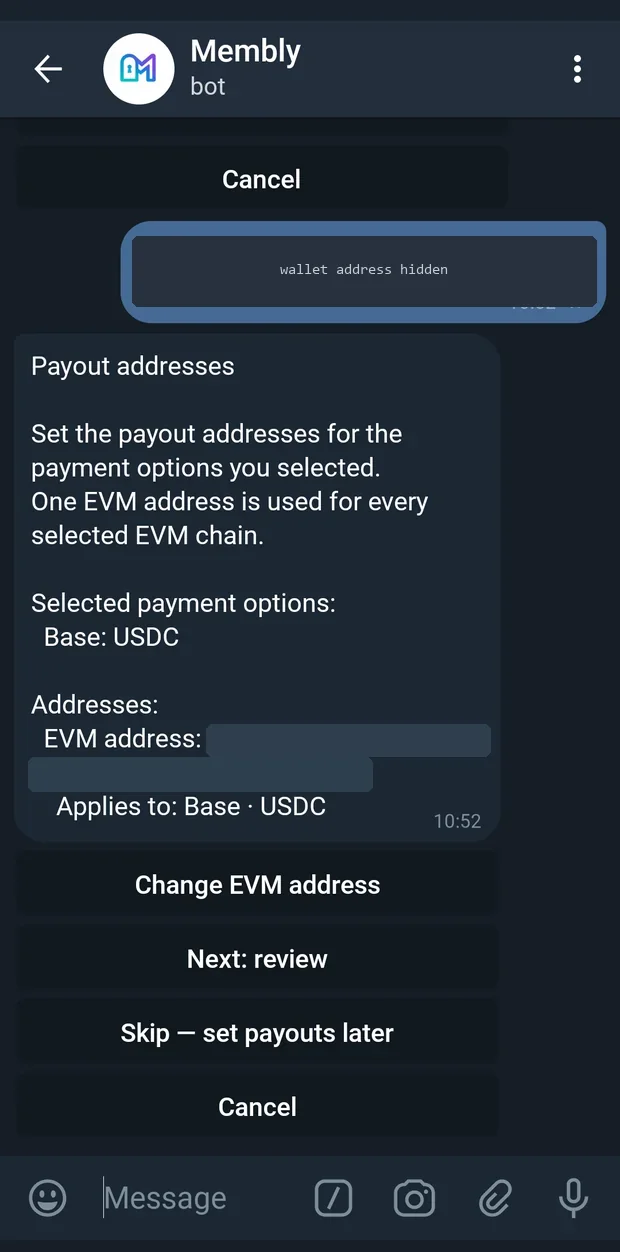
One EVM address covers every EVM chain you selected. -
Review, then launch
Review & launch
Bot: @AcmeVIPAccessBot
Group(s):
Acme VIP LoungePlan:
VIP · 30 days · $10.00Payout wallet:
EVM address: 0xAbCd…1234
Applies to: Base · USDC, USDTEverything look right? Tap Confirm & Launch to go live.
🚀 Confirm & Launch CancelIf you skipped the wallet steps, the payout section says so instead: "Not set yet — you'll add it from the setup checklist. Subscribers can't complete a payment until it exists." On a free plan it reads "None. Not needed for free/trial plans."
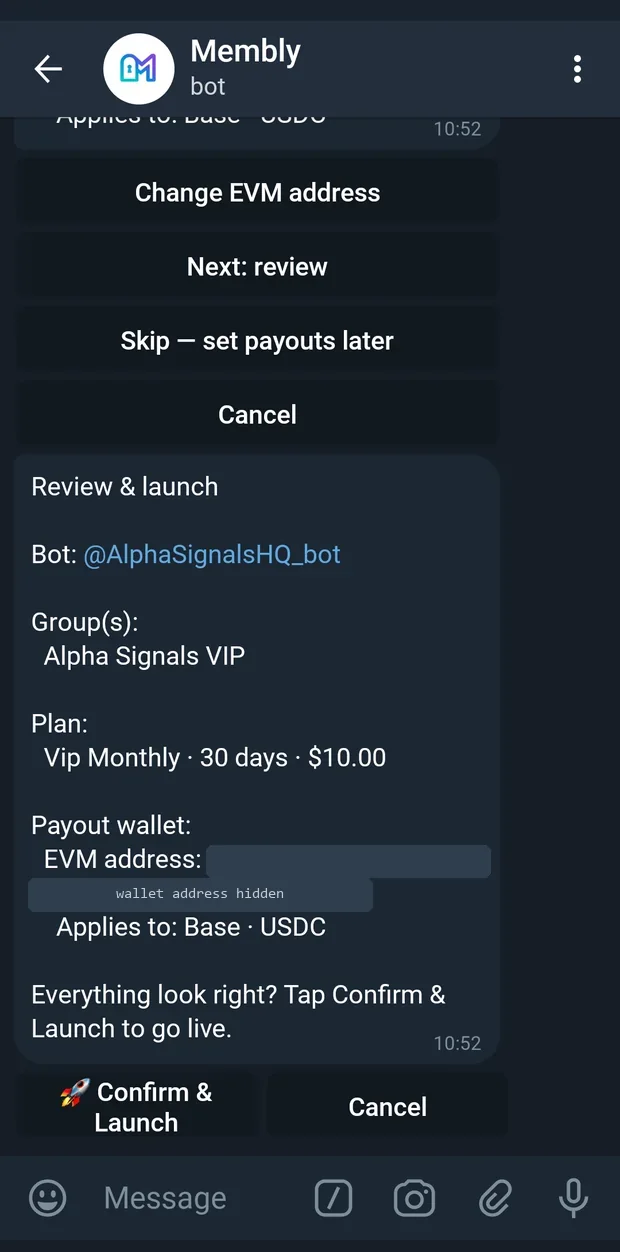
The review screen before going live. -
Live
Your bot is live!
@AcmeVIPAccessBot is now running and ready to accept subscribers.
Share link: https://t.me/AcmeVIPAccessBot
Next: tap Finish Setup to add your payout wallet — subscribers can't pay until one exists — and to tune your plan, welcome message and info buttons.
✅ Finish Setup Manage This Bot Create Another Bot
Set the public bot name, picture and description in @BotFather > /mybots > Edit Bot.At launch, you and everyone who is currently an admin of the linked groups are given lifetime access, so nobody who already runs the community gets locked out by their own paywall.
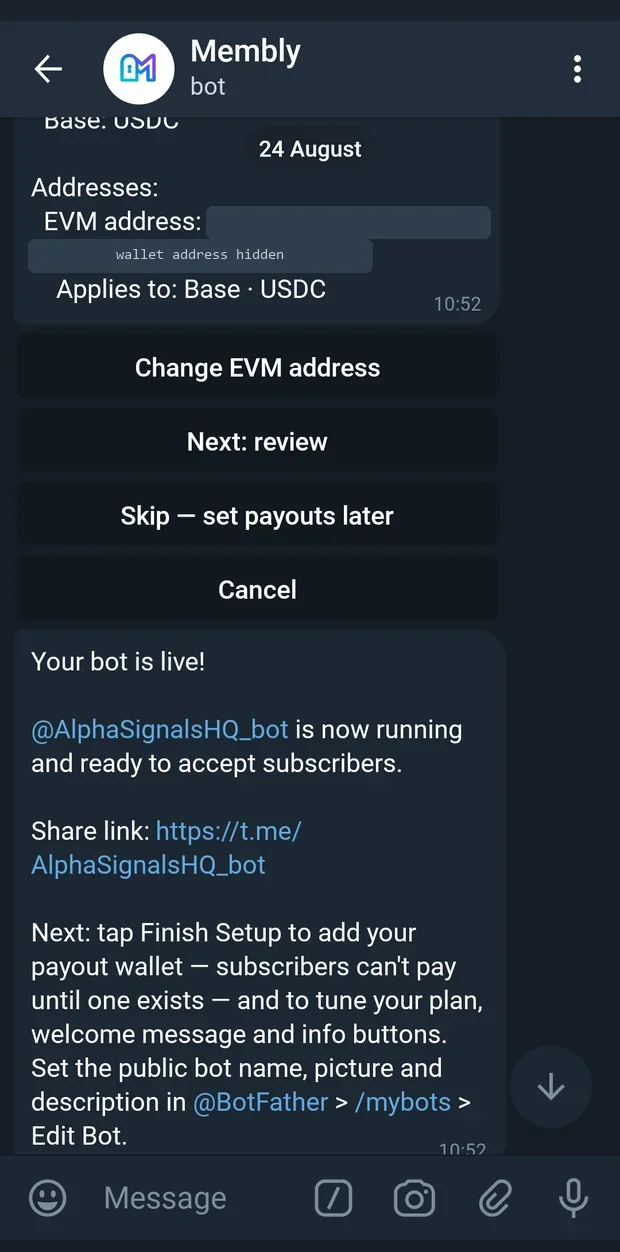
The bot is running and the share link is ready.
The payout address must be a wallet you control. Swept subscription revenue goes there and nowhere else. Never paste a member's address, an address someone sent you, or an exchange deposit address you cannot sign for. Membly does not hold your funds and cannot reverse a sweep to the wrong place. One EVM address covers every EVM chain you enabled; TRON, if you enable it, needs its own address.
If something fails during launch, the half-created bot is rolled back and the token is freed for a clean retry: "Something went wrong while launching your bot. Your progress was rolled back — send /newbot to try again, or contact support if it keeps happening."
The dashboard
The dashboard is your control panel for one bot. Open it from 🤖 My Bots and then Manage, or with /selectbot <id>. Whichever bot you open becomes the "selected bot" that commands like /plans and /members act on.
The header line is a status dot, your bot's label, its username, and its state — for example 🟢 Acme VIP @AcmeVIPAccessBot - Active, or 🔴 … - Paused.
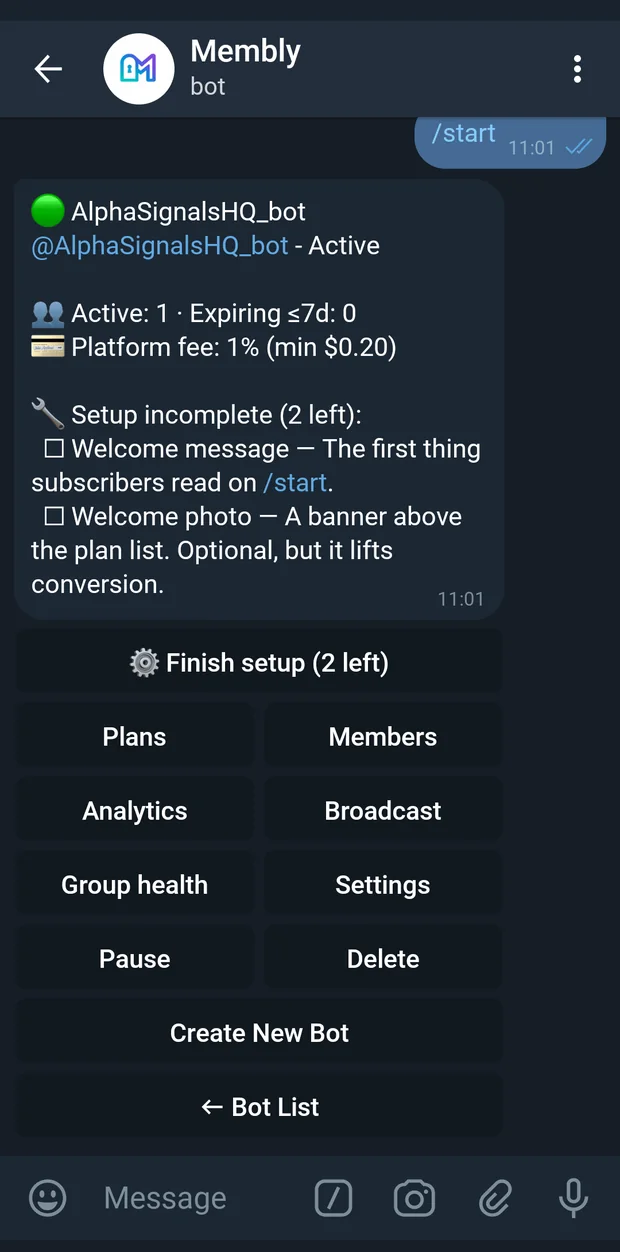
Every button
| Button | What it does |
|---|---|
| ⚙ Finish setup (3 left) | Opens the setup checklist. Shown only while something is unfinished; the count is how many items remain. |
| ⚠ Fix group permissions (1) | Jumps to group health. Shown only while a linked group is missing a required admin right. |
| Plans | Your plan list: prices, durations, visibility, coupons. |
| Members | Active subscribers, plus add, remove, track, search, expiring and CSV export. |
| Analytics | The four analytics pages. |
| Broadcast | Compose one message to a chosen slice of your subscribers. |
| Group health | Every linked group and whether the bot can still invite and remove there. |
| Settings | Rename, info buttons, wallets, chains and currencies, welcome message and photo, preview, checklist. |
| Pause / Resume | Stops or restarts your child bot. A paused bot answers nobody. |
| Delete | Permanent removal, behind a confirmation screen. |
| Create New Bot | Starts the creation wizard for another bot. |
| ← Bot List | Back to your list of bots. |
Before your first subscriber
While nobody has ever subscribed, the dashboard shows a pre-flight list instead of metrics:
No subscribers yet.
Launch checklist before sharing:
• Set the public profile in @BotFather.
• Preview Welcome and confirm Plans, Wallets, and payment networks.
• Run a test payment before posting the link publicly.
• Platform fee: 1% (min $0.20)
• Share link when ready: https://t.me/AcmeVIPAccessBot
Once people are subscribing
The summary block replaces it. Lines only appear when they have something to say:
👥 Active: 128 · Expiring ≤7d: 9
💰 Gross revenue (30d): 1,250.00 USDC · 80.00 USDT
⏳ Pending payments: 3
💳 Platform fee: 1% (min $0.20)
"Gross revenue (30d)" is what members paid in the last 30 days, before the platform fee. "Pending payments" is checkouts in progress. "Expiring ≤7d" is who you should be talking to this week.
The setup checklist
After launch, everything the wizard did not ask for lives here. Reach it from ⚙ Finish setup, ✅ Finish Setup on the launch message, or ✅ Setup Checklist in Settings.
Setup checklist - Acme VIP
2 thing(s) still block paid subscriptions, 2 optional.
⬜ Payout wallet
Where swept subscription revenue lands. Until one exists, subscribers can't complete a payment.
✅ A paid plan
✅ A linked group
⬜ Group admin permissions
The bot needs Invite Users via Link and Ban Users to issue invites and remove expired members.
⬜ Welcome message
The first thing subscribers read on /start.
⬜ Welcome photo
A banner above the plan list. Optional, but it lifts conversion.
Tip: set your bot's public name, picture and description in @BotFather > /mybots > Edit Bot.
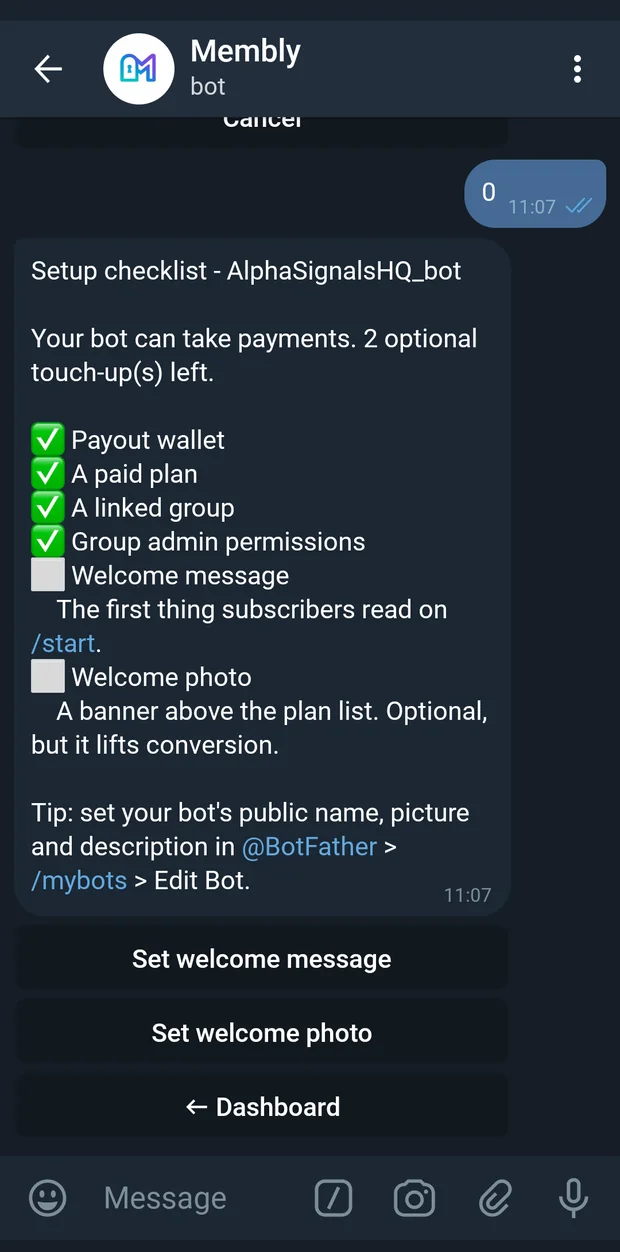
Four items block paid subscriptions and are always offered first: payout wallet, a paid plan, a linked group, and group admin permissions. Welcome message and welcome photo are optional polish. When there is nothing left the screen simply says "Everything is set up. Nothing left to do.", and when only optional items remain it says "Your bot can take payments."
Group health
Membly checks group permissions when you link a group, and never again on a schedule. If someone demotes your bot in Telegram, invites and removals stop silently. This screen is where that becomes visible.
🛡 Group health — Acme VIP
⚠ Acme VIP Lounge
missing "Ban Users" — expired members keep access for free
last checked: 2026-08-20 14:02 UTC
Fix: in the group, open Administrators → your bot and turn on "Add Members" and "Ban Users", then tap Re-check below.
Re-check permissions ← DashboardA healthy group reads "✅ Acme VIP Lounge — invite and remove both working". A group that has not been looked at since it was linked says "not checked since the group was linked".
Re-check permissions asks Telegram again for every linked group and saves what it finds, so the dashboard warning clears the moment you have actually fixed it. If the answer is good it says "All linked groups have the permissions they need."; if not, "Some groups still need attention. Grant the missing rights in Telegram, then tap Re-check." A paused bot cannot be asked, so resume it first: "@AcmeVIPAccessBot isn't running right now, so I can't read its group permissions. Resume the bot from the dashboard, then tap Re-check."
What the degraded warning actually means. Missing Invite Users via Link means paid subscribers get no join link — they pay and cannot get in. Missing Ban Users means expired members are never removed — they keep access for free. Both are silent: your bot stays up, your numbers look fine, and the money is wrong. Fix it the day you see the warning.
Settings
| Button | What it configures |
|---|---|
| Rename Bot | The label you see in your bot list. Up to 255 characters. It does not change the bot's public Telegram name — that lives in BotFather. |
| Info Buttons | Extra buttons on your child bot's start screen. Label up to 64 characters, content up to 4000. A URL becomes a tap-out link; anything else becomes a pop-up. |
| Wallets | Your payout addresses, one row per currency and chain. |
| Chains & Currencies | The on/off grid of payment options members can choose. |
| Welcome Message | The text a member sees on your child bot's /start. Up to 4000 characters, and clearable. |
| Welcome Photo | A banner above the plan list. Removable. |
| 👁 Preview Welcome | Renders exactly what a subscriber sees on /start. |
| ✅ Setup Checklist | The checklist above. |
Pause, resume, delete
Pausing stops your child bot from running. Resuming starts it again. Neither touches your plans, wallets or members.
Deleting is permanent and asks first:
⚠️ DELETE BOT: Acme VIP
❌ This action is permanent and cannot be undone.
The following will happen:
• The bot will be stopped and cannot be restarted
• All subscription plans will be removed
• All wallets linked to this bot will be removed
• 128 active subscriber(s) will lose access
Are you absolutely sure?
❌ Yes, delete permanently ← CancelPlans
A plan is one thing a member can buy: a name, a length, and a price. Open the list from the dashboard's Plans button or with /plans. Eight plans are shown per page, with « Prev and Next » when you have more.
Plans for Acme VIP:
1. ✅ VIP - 30 days - $10.00
2. ✅ Annual - 365 days - $99.00
3. ❌ Founder 🔒 secret - Lifetime - $250.00 (disabled)
⇄ Switching plans mid-term keeps a member's remaining days: the new period starts from their current expiry date, so nothing they already paid for is lost.
Tap a plan to manage it.
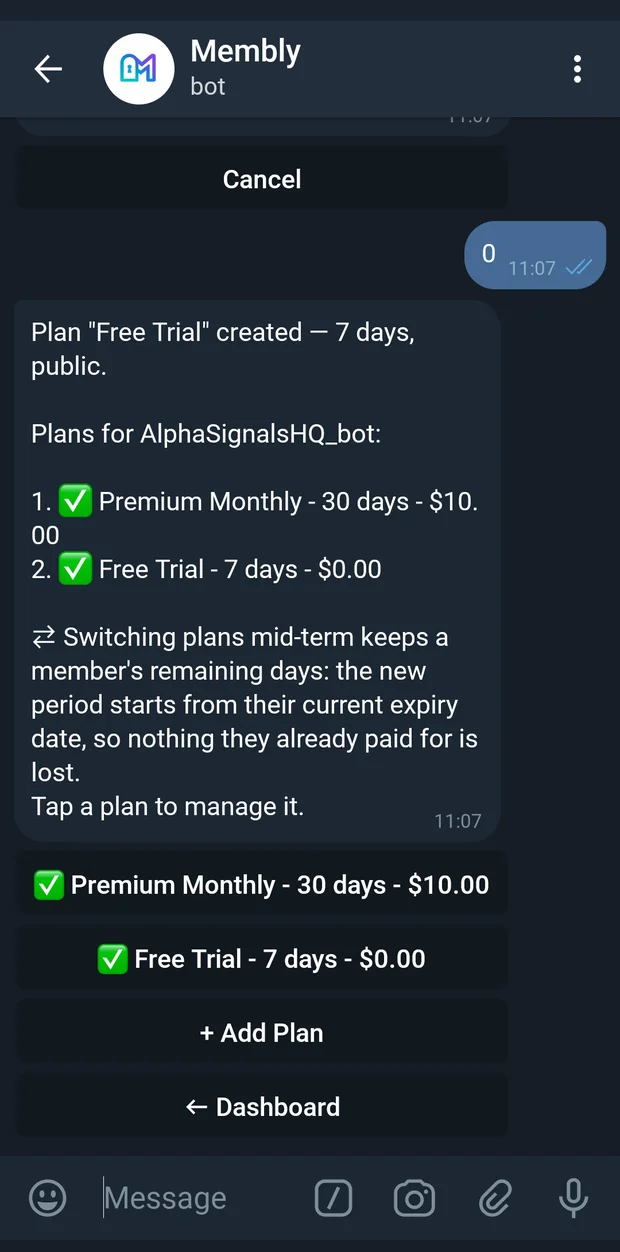
In a row, ✅ means enabled and ❌ disabled, and 🔒 secret marks a coupon-only plan. Tapping a plan opens its detail screen:
Plan: VIP
Duration: 30 days
Price: $10.00
🌐 Public: visible to all members.
🔁 Recurring: members can renew/extend.
🎁 Free trial: 7 day(s) for first-time subscribers
Status: ✅ Active
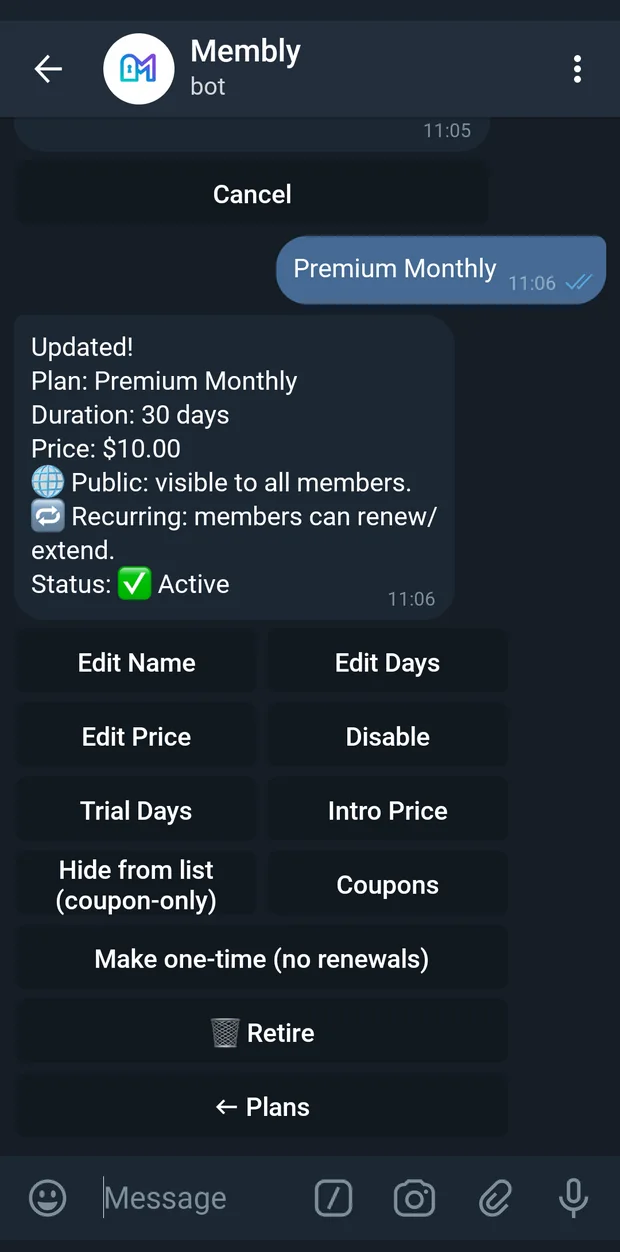
The fields
| Field | Meaning | Limits | What subscribers see |
|---|---|---|---|
| Name | What the plan is called. | 1–100 characters. | The name on the plan card they tap. |
| Days | How long one period lasts. | 1–65535 days. 0 or lifetime means it never expires. |
"30 days", or "Lifetime" for a plan with no expiry. |
| Price | Price in USD, paid in USDC or USDT. | 0 for free, otherwise more than $0.20. Up to 6 decimal places, maximum 999999999999.999999. |
The amount on the plan card and the exact amount to send at checkout. |
| Trial days | A free opening slice of the term, for first-time subscribers only. | 0 disables it. Not allowed on a lifetime plan — it never expires, so there is no first period to give away. |
"🎁 Free trial: 7 day(s) for first-time subscribers" on the plan. |
| Intro price | A cheaper first period, then the normal price on renewal. | 0 disables it. Must be more than $0.20 and below the normal price. |
The reduced amount for their first payment only. |
A plan uses either a trial or an intro price, never both. Setting one clears the other and tells you so: "Free trial was cleared because a plan can use either a trial or intro pricing." Dropping the price to or below an existing intro price clears the intro price for the same reason.
Editing a price or duration is confirmed, because it lands on real people. If anyone is subscribed or mid-checkout, you get an impact screen first: existing subscribers keep the term they already paid for and the new value applies from their next renewal, while any checkout already showing a payment address stays quoted at the old amount until it clears. Nothing is written until you tap Yes, apply.
Public or coupon-only
Hide from list (coupon-only) takes a plan off your public list. It then reads "🔒 Coupon-only: hidden from the plan list until a member redeems a matching coupon." and only appears for members who have redeemed a code for it. Show publicly puts it back: "🌐 Public: visible to all members."
Recurring or one-time
By default a plan is "🔁 Recurring: members can renew/extend." Switching it with Make one-time (no renewals) gives "1️⃣ One-time: granted once per member, no renewals." — a member can buy it once and never again.
Enable, disable, retire
Disable stops new signups and renewals but leaves current subscribers alone. It asks first, naming the number affected: "This plan has 128 active subscriber(s); they keep access until expiry, but no new signups or renewals. Disable?"
🗑 Retire is the stronger version, and it is what you use for a plan you are finished with:
Retire "Founder"?
The plan disappears from your list and from every member's plan list, and no new signups or renewals can select it. Nothing is erased: subscriptions, payments and receipts keep pointing at it, so history and revenue reporting stay intact.
• 12 active subscriber(s) keep access until their term ends, then cannot renew onto this plan.
Yes, retire CancelIf checkouts are in flight it warns about those too: "2 checkout(s) are in flight against this plan right now. Consider waiting for them to clear before retiring it."
Adding a plan
+ Add Plan asks four things: name, days, price, then visibility.
Plan: Annual (365 days)
Who can see this plan?
• 🌐 Public — listed for everyone on /start.
• 🔒 Coupon-only — hidden from the plan list until a member redeems a matching coupon.
Coupon codes
Coupon codes belong to a single plan. Open a plan and tap Coupons. A code does one or both of two jobs: it unlocks a coupon-only plan, and it discounts the price.
The recommended pattern. Do not discount your public plan. Create a second plan at the special price, hide it as coupon-only, and issue codes for that. The coupon screen suggests exactly this: "Tip: create a separate coupon-only plan for any special price or access tier, hide it, then issue coupon codes for that plan."
Creating a code
+ Add Code walks four questions.
-
The code itself
Enter a coupon code (3-32 chars, A-Z, 0-9, dash, underscore).
Cancel
Examples: VIP2026, ACCESS_01, MEMBER-ONLY:Lower case is accepted and stored upper case. A code must be unique within one bot.
-
How many people can claim it
Code: VIP2026
How many members can claim this code? Enter 0 for unlimited, or a whole number like 1, 10, or 50:
Cancel0is unlimited; the ceiling is 4294967295. The detail screen then reads "3 of 50 claimed" or "3 claimed / unlimited". -
What kind of discount
Code: VIP2026
Plan price is $10.00. Should this code also discount it?
% off the plan price $ off the plan price No discount (unlock only) CancelThe kind is asked before the number, because "10" alone could mean 10% or $10. A code carries one lever or the other, never both. On a free plan this question is skipped — there is nothing to reduce.
-
How much
For a percentage: more than 0, at most 100, up to two decimal places. For a fixed amount: more than 0, up to six decimal places. Membly then tells you the real effect, for example "25% off — members pay $7.50 instead of $10.00."
-
Single-use or retained
Code: VIP2026
Should this be a single-use plan?
• 🔥 Single-use: after a member redeems this code and activates the plan, the plan disappears from their list. They'd need a new code to get it again.
• 🔁 Retain (default): the member keeps the plan after redeeming and can renew/re-use it.Note: this is separate from the claim limit above — that controls how many members can use the code; this controls what happens after each member uses it.
🔥 Single-use (plan disappears after use) 🔁 Retain (member keeps the plan) Cancel
A 100%-off code still charges $0.20. A payment smaller than the platform minimum cannot settle on-chain, so discounts are capped there rather than going to zero. If you want genuinely free access, make the plan itself free — a $0 plan stays $0.
Managing a code
Tapping a code opens its detail screen with everything on one page — code, plan, claims, discount, status and mode — and three actions:
| Button | Effect |
|---|---|
| Pause code / Resume code | A paused code stops working immediately. Claims already made are unaffected. |
| Switch to Single-use / Switch to Retain | Changes what happens after a member redeems it. |
| Set discount / Change discount | Adds, changes or clears the discount. Choosing No discount (unlock only) clears it. |
How a member redeems one
In your child bot they tap Unlock Coupon or send /coupon, and get:
Enter your coupon code to unlock a plan:
CancelOn success the plan appears for them, with "Your discount is applied automatically at checkout." if the code carries one, or "This coupon-only plan is now available on your account." if it only unlocks. A bad or exhausted code is rejected without revealing anything: "That coupon code is not valid, expired, or inactive for this bot." or "That coupon code has been used up."
Coupon codes are not fee codes. A coupon code is yours: you create it, you give it to your members, and it changes what they pay you. A fee code comes from Membly to you, and it lowers the platform fee Membly charges on your revenue. You redeem fee codes yourself under Pricing and fees. Members never see them.
Payout wallets
A payout wallet is an address you control, per currency and chain. When a member's payment is confirmed, Membly sweeps it to that address, minus the platform fee. Until a wallet exists, members cannot complete a payment at all.
Open Settings then Wallets. Each wallet is one row labelled currency, chain and a shortened address, for example USDC / Base - 0x1234...abcd.
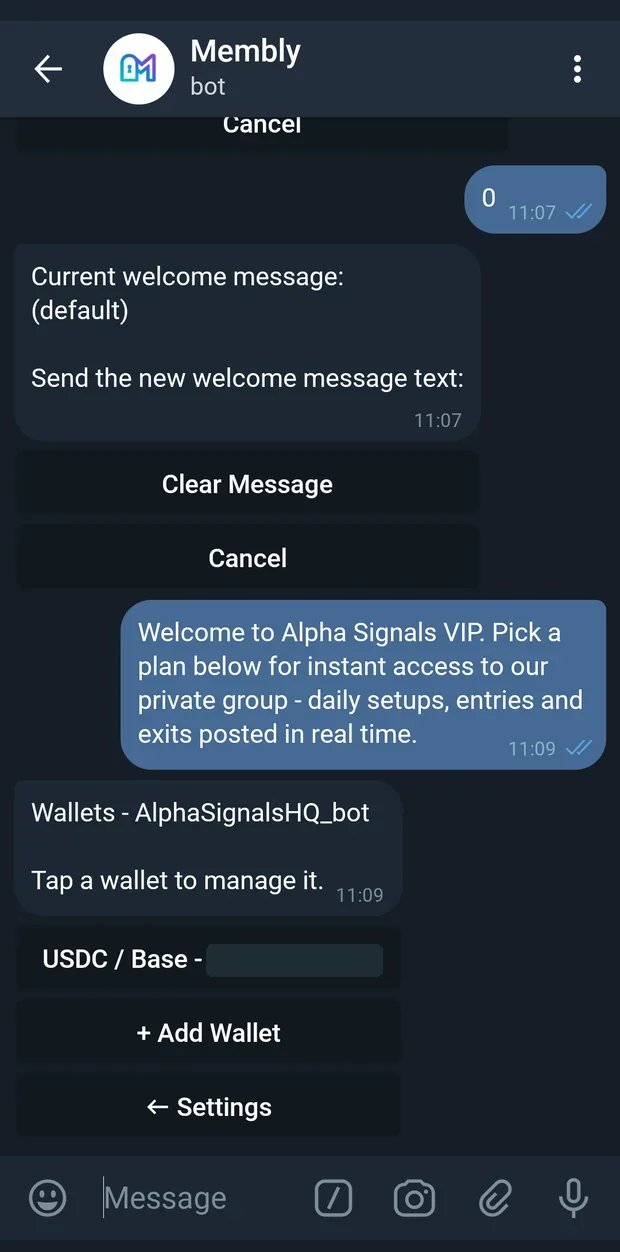
What you can be paid in
| Chain | Currencies | Address format | Available |
|---|---|---|---|
| Base | USDC, USDT | EVM: 42 characters starting 0x | Yes |
| BSC | USDC, USDT | EVM: 42 characters starting 0x | Yes |
| TRON | USDT only | TRON: 34 characters starting T | Off by default |
USDC does not exist on TRON, so that combination is never offered. TRON as a whole is disabled unless the platform has switched it on, so most operators only ever see Base and BSC.
One EVM address covers every EVM chain. Base and BSC are both EVM chains, and the same 0x… address works on both. The creation wizard asks for one EVM address and applies it to every EVM pair you enabled. In Settings each currency-and-chain pair is its own row, so you can point them at different addresses later if you want.
Adding a wallet
+ Add Wallet asks for currency, then chain, then the address:
Currency: USDC
Chain: Base
Send your payout wallet address: an EVM address: 42 characters starting with 0x, e.g.
0xAbCd1234567890abcdef1234567890abcdef1234
This is where swept subscription revenue for this token/network goes. Use a wallet you control; do not paste a subscriber/customer address:
CancelAddresses are checked properly, not just for shape. A mixed-case EVM address that fails its EIP-55 checksum is rejected as a likely typo. On success: "Wallet added for USDC / Base. Subscriber payments will sweep to this address after verification."
Changing or removing one
Open a wallet and tap Edit Address. The prompt shows the current address and warns you: "Use a wallet you control; do not paste a subscriber/customer address". 🗑 Delete asks to confirm, and says plainly: "This cannot be undone."
Changing a payout address redirects your money. It is the single most sensitive thing you can do as an operator, and every add, edit and delete is written to the platform audit log with the old and new address. Double-check the whole string, not the first and last four characters.
Turning payment options on and off
Chains & Currencies in Settings is the same information as a grid of toggles:
Chains & Currencies - Acme VIP
✅ = subscribers can pay with this option
❌ = disabled (tap to enable)
Tap any option to toggle it on or off.
✅ USDC/Base ❌ USDC/BSC ✅ USDT/Base ❌ USDT/BSC ← SettingsEnabling a pair asks for a payout address for it and creates the wallet. Disabling asks to confirm and deletes it: "Disable this currency? Subscribers will no longer be able to pay with it." Enabling more options gives members more ways to pay; if your checkout abandonment is high, too few enabled networks is one of the two usual causes.
What a sweep is
Each checkout gets its own fresh payment address, derived for that one payment and valid for a limited window. When the member's deposit is confirmed there, Membly sweeps it: the platform fee is deducted and the remainder is sent on to your payout wallet for that currency and chain. You do not do anything; you just receive it. Your earnings after fees are reported on the Revenue page of Analytics.
Members
Open Members from the dashboard, or send /members. Ten members are shown per page, newest activity first, each line naming their plan and expiry date.
Active subscribers for Acme VIP (128 total):
1. @samantha (Samantha Reed, ID 111222333) — VIP — 2026-09-21
2. Chris B. (ID 444555666) — Annual — 2027-02-02
3. ID 777888999 — VIP — No expiry
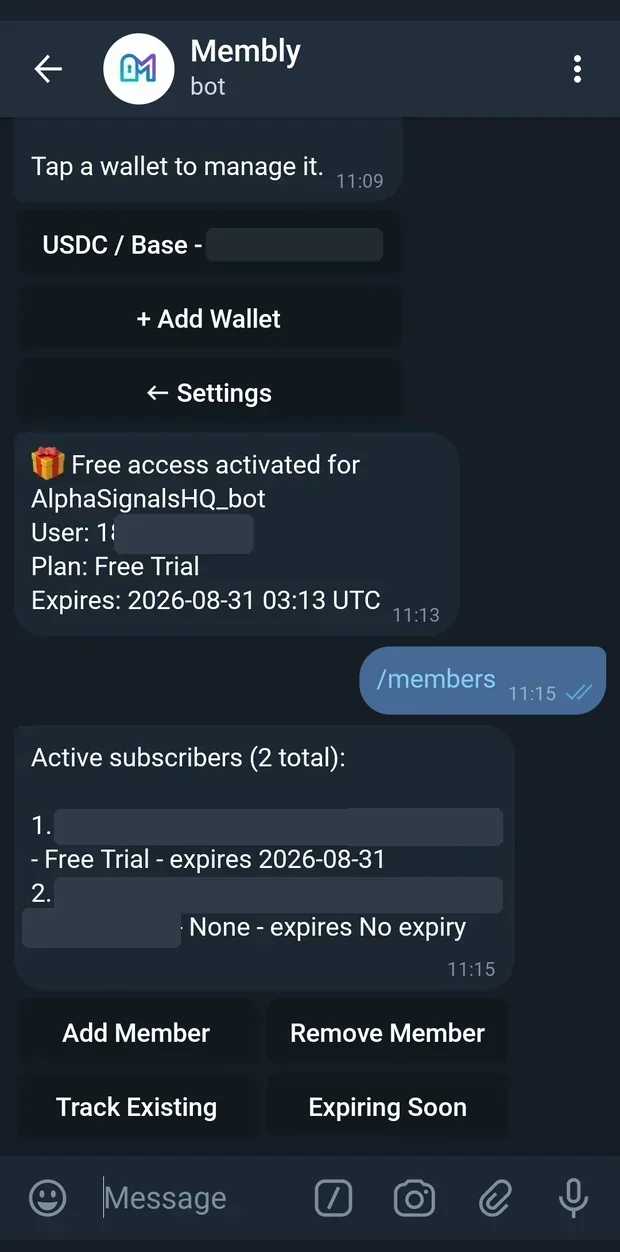
Every line carries the numeric Telegram ID, because usernames change and IDs do not. That is the ID you use for the actions below.
| Action | What it does |
|---|---|
| Add Member | Grants a subscription by hand, with no payment. Asks for a Telegram ID, then which plan. Membly creates the subscription, generates a join link for every linked group, and DMs it to them from your child bot. |
| Remove Member | Asks for a Telegram ID, removes them from every linked group, and cancels their subscription. |
| Track Existing | Records someone who is already in your group as a member with no expiry — the people who were there before you had a paywall. Also available as /track. |
| Expiring Soon | Everyone whose subscription ends within 7 days, paginated. Also available as /expiring. |
| 🔍 Search | Search by @username, name or Telegram ID. Results include past and present members with a ✅ or ❌ status marker. The search box stays open so you can run several queries. |
| Export CSV | Sends you a spreadsheet of every subscriber ever, as a file attachment. |
Adding by hand
Telegram IDs are numeric, between 1 and 9007199254740991. Anything else is rejected. If a member does not know their ID, they can forward any message to @userinfobot.
If the join links cannot be generated, the grant is rolled back rather than half-applied: "Subscription was not activated because no invite links could be generated. Fix the child bot/group permissions and try again." If the links work but the DM does not reach them, you are told so and given the fallback: "Ask the user to open the bot and tap Get Invite Link, or share the link manually."
Removing by hand
On success: "User 111222333 has been removed from every group and their subscription has been cancelled." If even one group refuses, nothing is cancelled and you are told to fix the cause: "Could not remove them from every group automatically. Fix the child bot/group permissions, then try again." That message almost always means the missing Ban Users right.
Tracking people who were already there
Track Existing accepts a numeric ID or an @username. Username lookup is best-effort: Telegram's Bot API can only resolve accounts that have interacted with the bot before, so if it fails you will be asked for the number instead. The result is a subscription with no expiry: "Tracking @samantha with no expiry."
The CSV export
The file arrives as members-<username>-<id>.csv with a caption counting the rows. Columns are:
| Column | Column | Column |
|---|---|---|
subscription_id | telegram_id | username |
full_name | plan | duration_days |
status | start_date | expiry_date |
invite_used_at | amount_paid | currency |
chain | payment_verified_at | created_at |
Text cells are neutralised so a member cannot smuggle a spreadsheet formula into your accounting file through their own display name.
Refunds
Members request refunds from your child bot. You review and execute them with /refunds. Nothing is refunded automatically, and the money only ever goes to the address the member gave — never back to whatever address the deposit arrived from, which may be an exchange.
Pending refund requests (3 total, oldest 9d)
• ⚠️ #4181 · Acme VIP · 10.00 USDC on Base · 9d
to 0xAbCd…1234
👤 User 444555666 - 2 requests:
• #4190 · Acme VIP · 5.00 USDT on Base · 2d
to 0x9876…5432
The queue is oldest first and shows at most 25 requests at a time. A ⚠️ prefix means the request is more than 7 days old. Requests from the same member are grouped under them. A deposit that arrived on the wrong network is marked ⤺ wrong chain and is refunded in the token and chain it actually landed on, not the one the invoice asked for.
Approving one
Approve #4181 does not send anything. It pins the destination and the amount you are looking at, then asks a second time:
Refund #4181
Amount: 10.00 USDC on Base
To: 0xAbCd…1234
Their subscription will be cancelled and they will be removed from your groups.
This will spend gas and broadcast an on-chain transfer. It cannot be undone. Confirmation expires in 5 min.
Confirm refund CancelFreezing the amount and destination at approval time is deliberate: inside the confirmation window neither a changed refund address nor a late extra deposit can alter what you agreed to send.
The confirmation expires, by design. It is valid for five minutes by default and is tied to that one approval. If you leave the screen open too long: "Refund confirmation expired. Open /refunds and approve it again." Tapping Cancel releases the pin so the member can still correct their address.
What approval does
Confirm refund broadcasts the on-chain transfer, then revokes access:
Refund sent!
Amount: 10.00 USDC on Base
To: 0xAbCd…1234
Tx: 0x7f1c…
Subscription #9042 cancelled. Removed from 1 group(s).
So one confirmed refund does three things: sends the tokens on-chain, cancels the subscription, and removes the member from every linked group. If a group cannot be reached you are told exactly which, and asked to do it by hand: "Could NOT remove them from 1 of 2 group(s): -1001234567890. Remove them manually." The member is notified automatically with the transaction hash.
The overpayment case
If a member simply sent too much, only the excess is returned and their access is untouched. The confirm screen says so up front — "The subscriber keeps their access (this only returns the overpayment)." — and afterwards: "Overpayment returned — the subscriber keeps their access."
If something goes wrong mid-flight you get a reference code rather than a raw error, and a clear instruction: "Check the queue before retrying — the transfer may or may not have been broadcast."
Analytics
Analytics on the dashboard, or /stats, opens a four-page report for the selected bot. /revenue jumps straight to the third page. Move between pages with the named navigation buttons; each page runs only its own queries, so it stays fast.
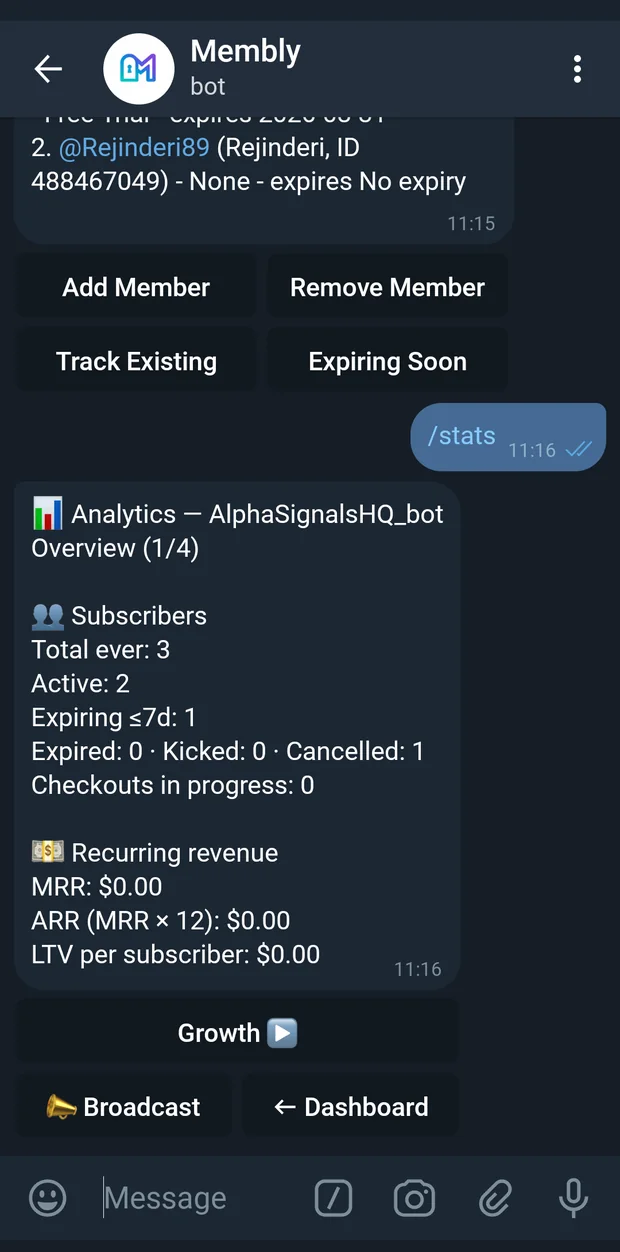
| Page | What is on it |
|---|---|
| Overview | Subscriber counts — total ever, active, expiring within 7 days, expired, kicked, cancelled, and checkouts in progress — then MRR, ARR (MRR × 12) and LTV per subscriber. |
| Growth | Last 30 days: churn rate, renewal rate, and the checkout funnel — conversion from started to paid, then how many were paid, rejected or cancelled, abandoned, and still in progress. |
| Revenue | Revenue per plan for the last 30 days, gross and your earnings for the last 30 days, and gross and your earnings all time with a per-currency breakdown and payment counts. Retired plans still report, marked "(retired)". |
| Retention | The share of each of the last six signup months still active today, as a small bar per cohort. |
The pages diagnose as well as report. If nothing has happened yet, they say so — "No active subscribers yet, so MRR and LTV stay at zero until the first payment is verified." If more checkouts are abandoned than paid, the Growth page names the two usual causes: "the plan price is too high for the audience, or too few payment networks are enabled (Settings → Chains & Currencies)." And if churn passes 10%: "Churn is above 10% — try a Broadcast to your expiring members before their access ends."
Both revenue lines matter and they are different numbers. "Gross" is what members paid. "Your earnings" is what reached you after the platform fee.
Broadcast
A broadcast is one message sent to a slice of your subscribers. Open it with Broadcast on the dashboard or /broadcast. Delivery is queued and paced, so a large audience takes a few minutes to land and nobody gets it twice.
📣 Broadcast — Acme VIP
Send a one-off message to your subscribers. Delivery is queued and paced, so a large audience takes a few minutes to land.
Who should receive it?
Recent broadcasts:
2026-08-14 — Active subscribers — 121 recipients (sent)
-
Pick an audience
Four choices, exactly as labelled above. Your last three broadcasts are listed for reference so you do not repeat yourself.
-
Write the message
📣 Broadcast — Acme VIP
Audience: Expiring within 7 days
Send the message you want your subscribers to receive. Plain text only — it is delivered exactly as typed.
Cancel
Maximum 3,500 characters.Plain text, delivered as typed. No formatting, no attachments.
-
Check the preview
📣 Preview — Acme VIP
Send to 9 Cancel
Audience: Expiring within 7 days
Recipients: 9
———
Your access ends this week. Renew any time with /renew.
———
Send it? There is no unsend. To change the text, just send it again.The recipient count is real, not an estimate. Sending a different text is as simple as typing it again — the preview is replaced rather than added to. If nobody matches, you are told before you write anything: "No one matches "Expiring within 7 days" right now, so there is nothing to send. Pick a different audience:"
-
Send
✅ Broadcast queued — Acme VIP
Audience: Expiring within 7 days
Queued for 9 subscriber(s).
Messages go out through the delivery queue over the next few minutes. Each subscriber receives it once, even if this is retried.The audience is re-counted at send time, so the number queued is the number actually enqueued rather than a stale preview figure.
There is no unsend. Double-tapping Send is safe — "That broadcast has already been sent. Nothing was sent twice." — and a failure sends to nobody at all rather than half your list: "Sending failed and nothing went out — not one subscriber was messaged. Tap Send to try again." But once it is queued, it is going out. Read the preview.
Pricing and fees
Membly has no monthly cost. It takes a percentage of each paid payment, and only when you get paid. 💸 Pricing & Fees on the home menu shows your own rate:
💸 Pricing & Fees
Your platform fee: 1%
Minimum fee: $0.20 per paid payment.
When a member pays, the fee is deducted automatically and the rest is swept to your payout wallet.
Have a fee code from Membly? Redeem it here to lower your platform fee.
No monthly cost. You only pay when you earn.
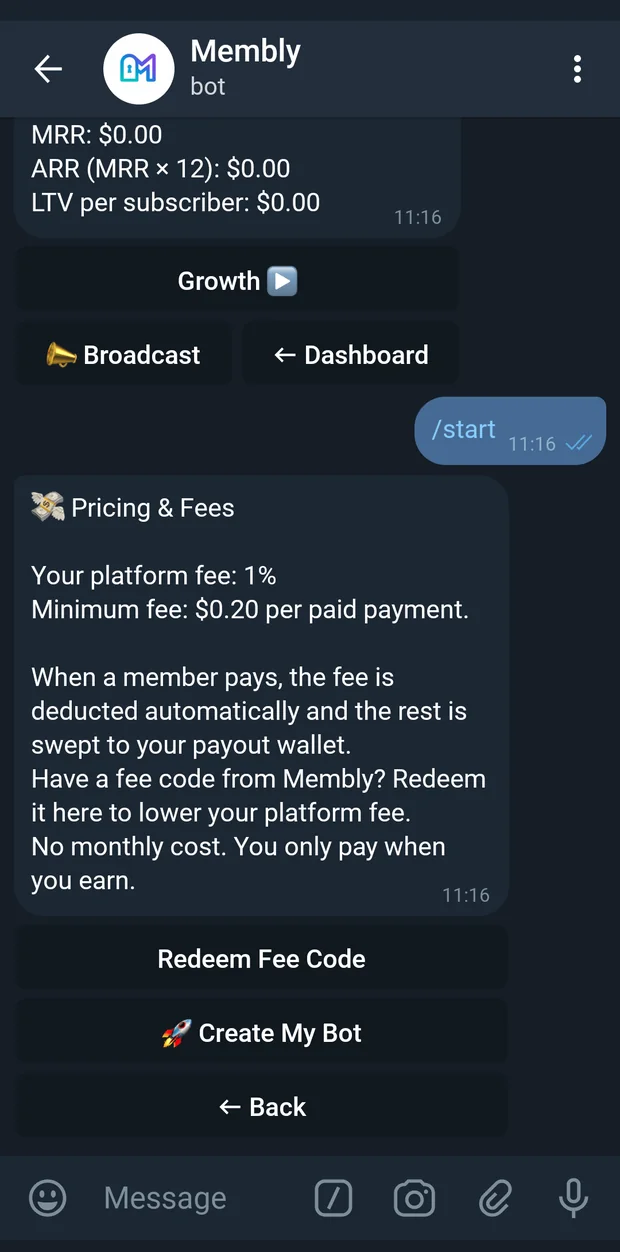
| Term | What it means |
|---|---|
| Platform fee | A percentage of each paid payment. Free plans never sweep, so they are never charged. |
| Minimum fee | $0.20 per paid payment, whenever your rate is above 0%. This is why a priced plan must cost more than $0.20 — at or below it you would receive nothing. If the platform fee is set to 0%, the screen says "Minimum fee: none while the platform fee is 0%." |
| Charged on sweep | The fee is deducted at the moment your payment is swept to your payout wallet. You never pay it separately or up front. |
| Per-operator rate | Membly can give an individual operator a different rate. When yours differs from the platform default, the screen appends "(your custom rate)". Your effective rate also appears on each bot's dashboard. |
Redeeming a fee code
A fee code is issued by Membly and lowers your platform fee. Tap Redeem Fee Code:
Enter your fee code. Example: FIRST-KEY
CancelOn success it tells you both numbers: "Fee code FIRST-KEY applied. Your platform fee is now 0.5% (was 1%)." The other outcomes are equally plain:
- That fee code has already reached its redemption limit.
- The code was valid but too many operators got there first.
- You already redeemed that fee code.
- One redemption per operator per code.
- That fee code applies 2%, but your current fee is already 1%.
- A fee code only ever lowers your rate; it will not raise it.
- That fee code is not valid or active.
- Wrong code, or it has been switched off.
Fee codes are nothing to do with the coupon codes you give your own members.
Command reference
Eleven commands are published to Telegram's command menu, so they appear when you type / in a chat with @MemblyBot. Several more work but are deliberately kept out of the menu, because the buttons are the better route.
Published in the menu
| Command | Effect | Who can run it |
|---|---|---|
/start | Open onboarding or dashboard. | Anyone. First use registers you as an operator. |
/newbot | Create a child bot. | Any registered, active operator. |
/bots | Manage your bots. | Any registered, active operator. |
/plans | Manage selected bot plans. | Operator, with a bot selected. |
/members | Manage selected bot members. | Operator, with a bot selected. |
/refunds | Review refund requests. | Any registered, active operator. Shows requests across all your bots. |
/broadcast | Message your subscribers. | Operator, with a bot selected. |
/stats | Analytics: MRR, churn, conversion. | Operator, with a bot selected. |
/revenue | View selected bot revenue. | Operator, with a bot selected. |
/help | Show command help. | Anyone. |
/cancel | Cancel current action. | Anyone. Only meaningful inside a wizard or prompt. |
Works, but not in the menu
| Command | Effect | Who can run it |
|---|---|---|
/selectbot <id> | Open a specific bot's dashboard by numeric ID and make it the selected bot. | Operator who owns that bot. |
/pausebot <id> | Stop accepting new subscriptions; the child bot stops running. | Operator who owns that bot. |
/resumebot <id> | Reactivate a paused bot. | Operator who owns that bot. |
/deletebot | Permanently remove the selected bot, behind a confirmation. | Operator, with a bot selected. |
/addmember | Grant a subscription by hand. | Operator, with a bot selected. |
/removemember | Remove a member and cancel their subscription. | Operator, with a bot selected. |
/track <id or @username> | Track an existing group member with no expiry. | Operator, with a bot selected. |
/expiring | List subscriptions expiring within 7 days. | Operator, with a bot selected. |
/admin | Open the platform admin panel. | Platform admins only Silent to everyone else. |
/admin_sweep | List stuck payment addresses, or sweep one by hand. | Platform admins only |
Running a bot-scoped command with nothing selected gives you a way in rather than an error: "No bot selected. Open My Bots and choose the bot you want to manage."
If nothing responds, you may be going too fast. The master bot limits how many messages and button taps it will process per second. Over that budget, a tap answers with "You're going too fast — please wait a moment." Wait a second and carry on.
Troubleshooting
My bot lost its admin rights in the group
The master bot tells you before you notice it yourself: /start adds a warning banner and a ⚠ Fix group permissions button, and the dashboard shows ⚠ Fix group permissions (1). Open Group health to see which group and which right. In Telegram, open the group, go to Administrators, select your bot, and turn on both Add Members and Ban Users. Come back and tap Re-check permissions. The warning clears only when the re-check actually passes, so if it stays, the rights are still not set. If your bot is paused, resume it first — a bot that is not running cannot be asked what its permissions are.
I got an "Enforcement degraded" message, but the bot really is an admin
Check Group health before you change anything. If it reports the group as "invite and remove both working", nothing is broken and you can ignore the warning.
This happens most often right after you first launch a bot, and especially if you promoted the bot to admin before linking the group. Telegram queues up membership events and delivers the whole backlog the moment your bot starts running. The older event — the one from the seconds when the bot was still a plain member — is replayed first and triggers the warning, then the newer "is now an admin" event immediately corrects the stored permissions. The warning message is a snapshot of a moment that has already passed.
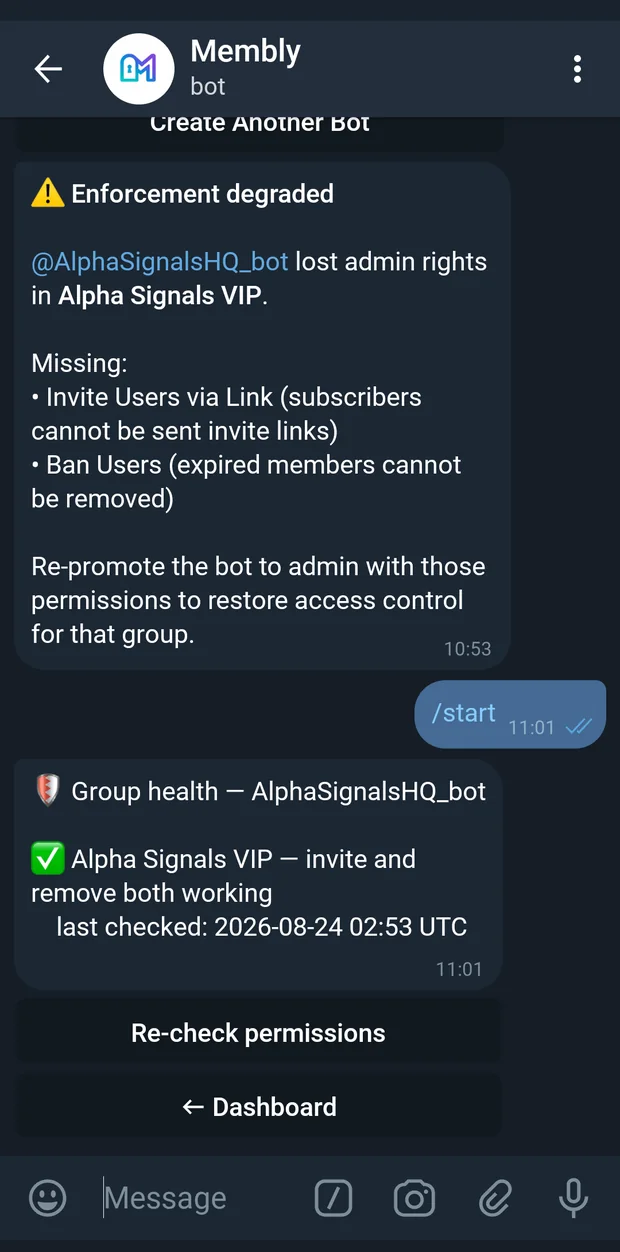
Two things to know. The warning is sent once per group and is not repeated, so a second identical message means a second, separate event. And there is no "all clear" message when rights come back — the only way to confirm the current state is Group health or Re-check permissions.
My subscribers cannot pay
Almost always one of two things. First, no payout wallet: until one exists a payment cannot complete, which is why Payout wallet is the first blocking item on the setup checklist. Add one under Settings then Wallets. Second, no enabled payment option: check Chains & Currencies and make sure at least one currency-and-chain pair shows ✅. Also check the plan is priced above $0.20 and is enabled, and that your bot is not paused.
The wizard rejected my bot token
Three different messages, three different causes. "That doesn't look like a valid token format." means the string is malformed — you probably copied part of BotFather's sentence around it. "Telegram rejected that token. It may be revoked or miscopied." means Telegram itself refused it; open @BotFather, send /mybots, pick the bot, choose API Token, and copy the whole line again. "That token is already registered on this platform." means that bot is already on Membly — use /bots to manage it, or create a new bot in BotFather. A bot you previously deleted from Membly can be added again with the same token.
The wizard cannot find my group
Auto-detection depends on Telegram replaying the "bot was added" event, and Telegram sometimes drops it. Check the two things the wizard lists: the bot really is a member of the group, and it is an admin there with Invite Users via Link and Ban Users. Then tap 🔄 Check again. If it keeps failing, skip detection entirely and send the group's numeric chat ID into the wizard instead — a negative number starting -100, which you can find by forwarding any group message to @userinfobot. If the wizard says it found your group but the bot is not an admin, or lists a missing right by name, that is the real problem: fix the permissions and check again.
A plan is not showing up for members
Four possibilities, in order of likelihood. It is coupon-only — the list shows 🔒 secret and the detail screen says "🔒 Coupon-only: hidden from the plan list until a member redeems a matching coupon."; either tap Show publicly or give the member a code. It is disabled — shown as ❌ and "(disabled)"; tap Enable. It has been retired, in which case it is gone from your list too and cannot come back. Or the member already has an active subscription, so they are being shown renewal options rather than the full plan list.
An expired member is still in my group
This is the Ban Users right. Without it your bot cannot remove anybody, and expired members keep access for free. Open Group health: the group will be flagged with "missing "Ban Users" — expired members keep access for free". Turn the right on in Telegram, tap Re-check permissions, then remove the member yourself with Remove Member in the member list. If a manual removal reports that it could not remove them from every group, the permission is still missing somewhere.
A screen stopped responding halfway through
Wizards and prompts do not wait forever. Bot creation holds your progress for 30 minutes; most other prompts, including plan edits and coupon setup, time out after 5 minutes, and the broadcast composer after 10. When one expires you are told — "Your setup session timed out. Progress was not saved." — and nothing partial is written. Send /start and begin again. /cancel gets you out of any prompt at any point.